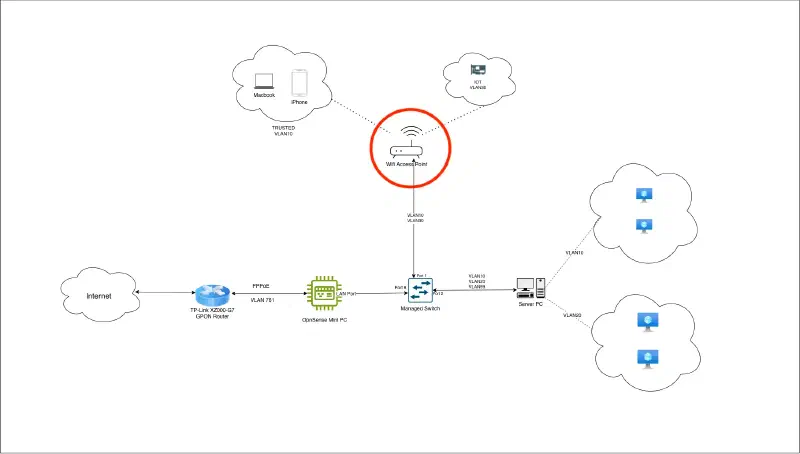
All wireless devices connect to internet via this Access Point. The access point supports VLAN and exposes two SSIDs - one for VLAN10 (TRUSTED) and one for VLAN30 (IOT).
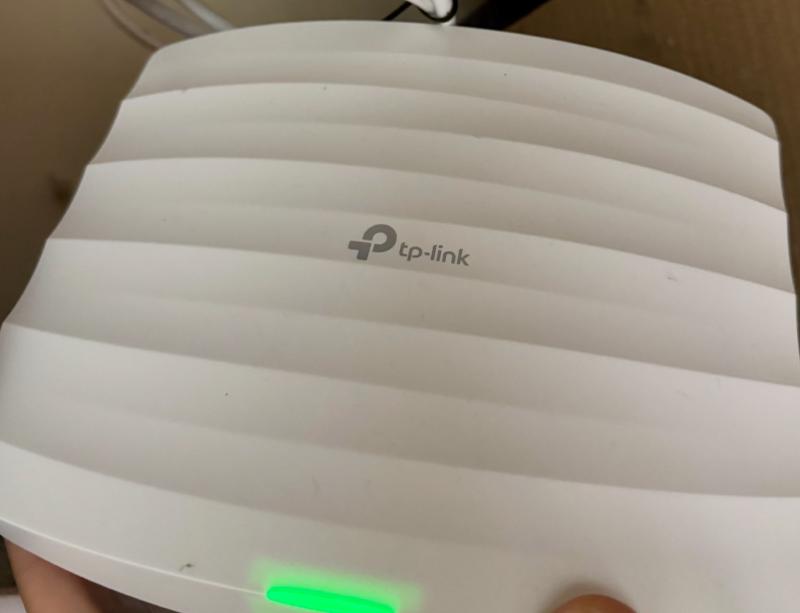
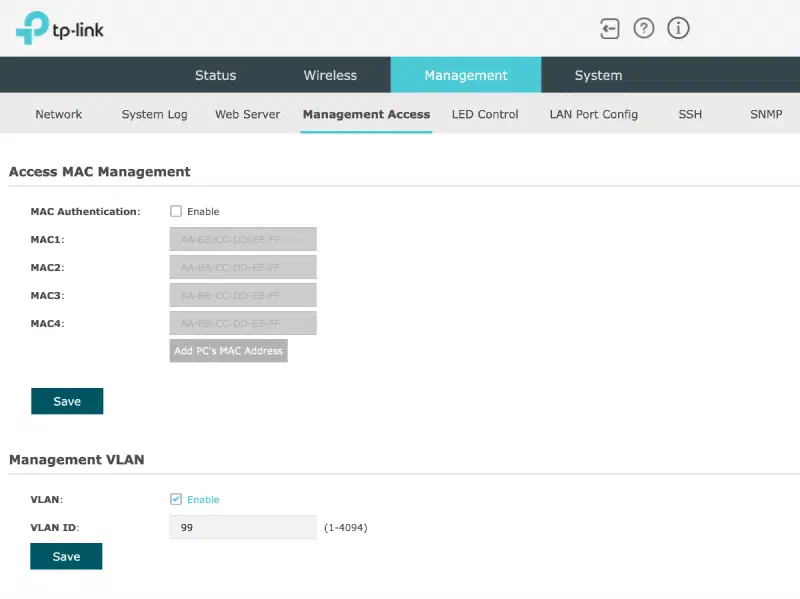
The Access Point is assigned IP from MANAGEMENT VLAN (VLAN99) IP pool via DHCP. This is done by assigning Management VLAN 99 in AP interface. For further details on VLAN configuration, refer VLAN Configuration
Connecting to Wireless Access Point’s interface#
When connecting for the first time, either directly via LAN cable or SSID, the interface is accessible at http://tplinkeap.net. But once we configure Management VLAN ID as 99 - connecting to AP gets a bit tricky. This is due to a bug in TP-Link firmware - TP-Link rejects request if source IP is different from it’s interface IP. What this means is if I try to access VLAN99 IP assigned to AP from TRUSTED VLAN10 device, AP will not allow it.
Assuming AP is connected to Port 1 of Switch, the AP gets IP from VLAN99 pool. To check IP to received:
- In OpnSense, go to
Services -> Dnsmasq DNS & DHCP -> Leases - Look for IP assigned to
EAP245. - To make this IP static, click on
Add Reservationagainst the IP entry and create reservation.
I’ll use this IP for SSH port-forward in order to connect to EAP.
OpnSense router and Access Point both are on VLAN99. Hence, the AP is accessible from OpnSense
ssh -L 8443:<AP_VLAN99_IP>:443 <opnsense_user>@<opnsense_ip>:<opnsense_port>`AP is then accessible at http://localhost:8443
SSID configuration#
- Create required SSIDs. I have created two - one for
TRUSTEDand one forIOT. - Once SSIDs are created, go to
Wireless -> VLAN - Against each SSID:
- Enable VLAN
- Assign VLAN ID:
<TRUSTED_SSID>: VLAN ID = 10<IOT_SSID>: VLAN ID = 30
- Save
Testing connection#
Try connecting to these SSIDs one by one. Ensure:
- TRUSTED is able to access VLAN99 devices (eg: Opnsense interface)
- IOT is unable to access VLAN99 devices. I had configured firewall rule for this.
- Firewall rules reference - Firewall Rules