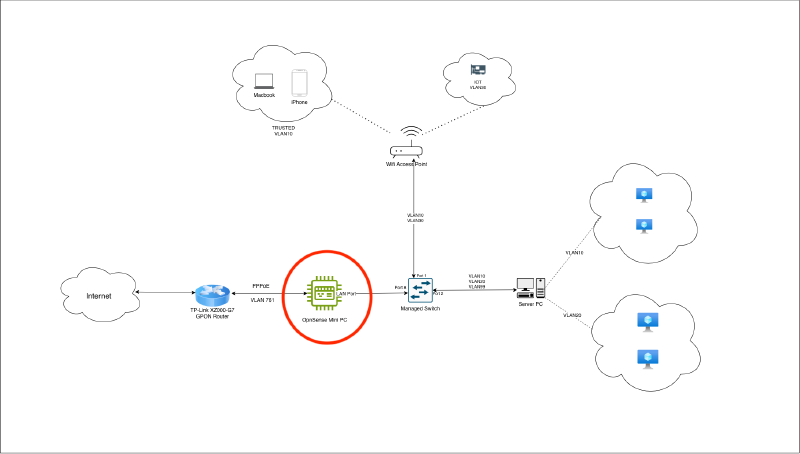
OpnSense router is the heart and soul of entire homelab setup. Firewall rules, VLAN configurations, exposing services to the internet, wireguard setup… everything is done in OpnSense. I have setup OpnSense in a Mini PC. This PC has two LAN ports and is powered with Intel N150 processor.
One port connects to XPON modem and the other port connects to Switch. Until switch is configured, the other port can be connected directly to laptop/PC.
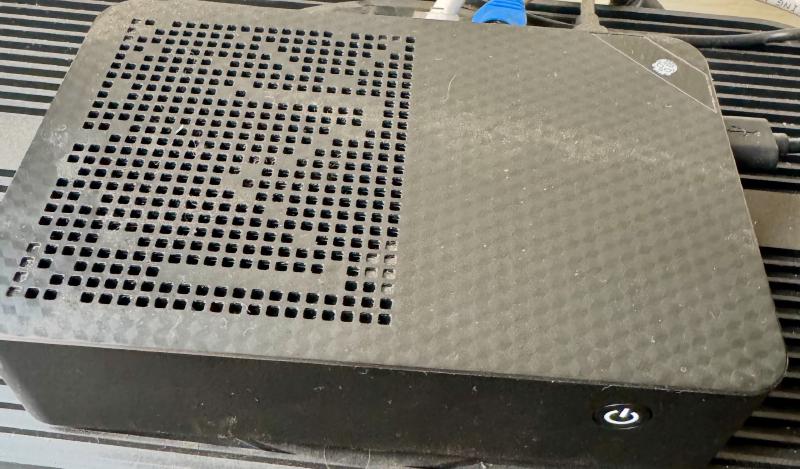
This document highlights all the configuration(s) I have done in OpnSense router. I’ll try to document as much as I can, and keep this document updated.
I’ll segregate OpnSense configuration(s) in their own sections. This should make it easy to navigate and jump to relevant sections.
ISP configuration to connect to Internet#
Assuming XPON is configured and is in registered state, I’ll proceed to setup router to connect to the internet.
Refer XPON Modem configuration if not already done
My ISP connects over PPPoE and has VLAN configured. I was provided details for both by them.
The VLAN ID provided by ISP is different from VLAN we will configure to segregate internal network. ISPs use VLANs to segregate services provided by them such as internet service, VoIP, etc.
My mini pc has two ethernet ports. One port is configured as wan and the other as lan. For me, the wan interface is assigned device id igc1 and lan as igc0. Interface parents are configured according to these details.
wan - igc1
lan - igc0
I’ll first create the interfaces (Step #1 and Step #2). Then begin configuring required interfaces.
ISP configuration deals with mini pc’s wan interface. I’ll configure the interface devices (VLAN, etc.) as per my ISP’s requirements. On successful configuration, router should be able to connect to the internet. Meaning ping test from router to internet should work.
Create ISP VLAN#
- Go to
Interfaces -> Devices -> VLANand create a new VLAN. - Enter Device Name (eg:
vlan0.<tag>) - Select Parent interface. This should be the WAN interface (Important!) - ethernet port to which XPON modem is connected to. For me this is
igc1. - Enter VLAN tag provided by ISP
- VLAN Priority 0
- Description is optional
- Save and Apply
Create PPPoE device#
- Go to
Interfaces -> Devices -> Point-to-Point - Click Add new interface
- Link Type - PPPoE
- Link Interface - VLAN interface created in previous step
- Description (optional)
- Username/password - as provided by ISP
- Leave rest as it is. Populate fields that are applicable to you.
- Save and Apply
wan (igc1) interface#
XPON modem is connected to this interface
- Go to
Interfaces -> <wan> interface. EnsureIdentifierin interface iswan. - Let’s call this
UnderWAN. This is because PPPoE device uses this interface under the hood. SetDescription=UnderWAN - Changes to this interface gets applied to PPPoE device interface automatically.
- With this new OpnSense router, authentication was failing with ISP because of MAC mismatch. My ISP had previous router’s MAC address registered with them.
- To fix this, set
MAC Addressto MAC registered with ISP - for me this is previous router’s MAC address. - Save and apply
PPPoE interface Assignment#
- The PPPoE device created in Step #2 needs to be enabled
- Go to
Interfaces -> Assignments - Create a new assignment for PPPoE device created in Step #2
- Set description
WAN_ISP - Save and apply. Once applied,
WAN_ISPshould be visible underInterfacessection - Configuring
WAN_ISPinterface - Go to
Interfaces -> WAN_ISP - Enable interface if its disabled
- Set description
WAN_ISP - IPv4 configuration - select PPPoE
MSS- 1492 - Without this setting, router uses default MSS - 1500 which is incorrect. PPPoE connection uses 8 bytes, which should be accounted for in MSS value.- Save and apply
Testing connectivity#
I’ll try pinging host 1.1.1.1 from opnsense router-
- Go to
Interfaces -> Diagnostics -> Ping - Enter hostname -
1.1.1.1 - Address Family - IPv4
- Keep rest as it is. Click Start
- Let it run for a few seconds.
- Note
SendandReceivevalues. If they are greater than 0, internet connect is working.
If it doesn’t work, double-check the following:
- PPPoE credentials
- VLAN tag provided by ISP
- Custom MSS value? Wrong MSS can lead to dropping of packets.
UnderWANinterface MAC address override.- Is XPON modem in Registered state?
VLAN configuration#
This is internal VLAN configuration to segregate internal network.
Here, we work with
laninterface which isigc0for me.
I have following VLANs configured. This serves my current use-case, and might change in future as and when required.
The idea is to isolate PUBLIC and IOT network from TRUSTED network, while keeping all management devices (such as routers/switch/etc.) isolated from all other networks.
| VLAN | VLAN Name | IP | Notes |
|---|---|---|---|
| VLAN10 | TRUSTED | 10.0.10.1/24 | Trusted Devices such as Phones, laptops, etc. |
| VLAN20 | PUBLIC | 10.0.20.1/24 | Publicly-exposed VMs/LXC containers |
| VLAN30 | IOT | 10.0.30.1/24 | IOT devices |
| VLAN99 | MANAGEMNT | 10.0.99.1/28 | Management devices (OpnSense, switch, Access point, etc.) |
Creating VLAN devices#
- Go to
Interfaces -> Devices -> VLAN - Click Add VLAN
- Enter Device Name (eg:
vlan0.<tag>) - Select Parent interface. This should be the WAN interface (Important!) - ethernet port to which XPON modem is connected to. For me this is
igc1. - Enter VLAN tag provided by ISP
- VLAN Priority 0
- Description is optional
- Save and Apply
Repeat this for all other VLANs
Device Assignment#
After creating VLAN devices, we need to assign them an interface.
- Go to
Interface -> Assignments - Click Add
- Enter description. Ideally it should be identifier for Device we select in next step
- Select VLAN device for which interface is to be created.
- Keep rest of the fields default
- Click Save
Repeat for all VLAN devices. Once done, click Apply for changes to take effect.
After applying, refresh page. Interfaces created should be visible under Interfaces
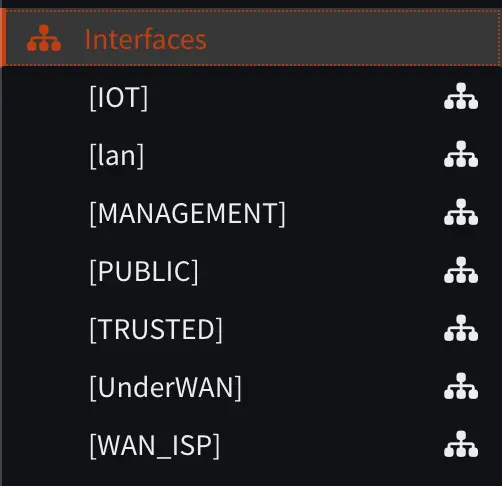
For each VLAN interface, ensure:
- It is Enabled and have
Prevent Interface removalenabled. - Verify the
Deviceit is assigned to. Should ideally bevlan*device orwan/lan - Under Generic configuration:
- Set
IPv4 Configuration TypetoStatic IPv4 - Under
Static IPv4 configuration - Enter IPv4 address and subnet. Eg: For IOT, the IPv4 address will be
10.0.30.1and subnet/24. - This IPv4 acts as gateway and interface address.
- Subnet tells valid range of IPs this interface will work for. Eg: All devices within 10.0.30.1/24 will have gateway pointing to
IOTinterface.
- Set
Repeat for all interfaces.
Next, I’ll configure DHCP ranges for all these interfaces.
DHCP Range configuration#
This configuration defines valid range the IPs from which DHCP server provides IP addresses to clients.
- Go to
Services -> Dnsmasq DNS & DHCP -> DHCP Ranges - Click Add button
- Select
Interface - Enter Start Address
- Enter End Address
- Keep rest of the fields default
- Save
Repeat this for all interfaces. Once created, click Apply for changes to take effect.
Example: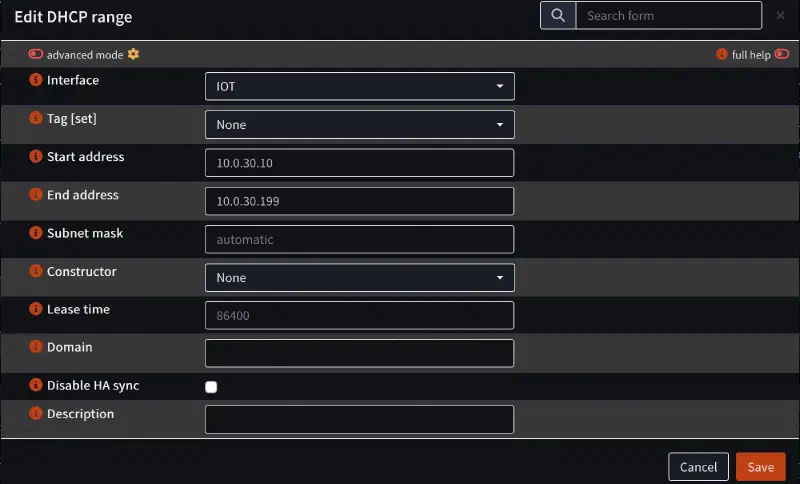
This tells IOT devices will get IPs betweek 10.0.30.10 and 10.0.30.199
Firewall Rules#
By default, firewall restricts traffic for all new interfaces. Meaning all traffic to/from interface will be blocked. I’ll configure firewall rules to allow traffic to flow through the interface(s).
At a high level, these are the basic rules I want:
IOT,PUBLICnetwork should not be able to talk to any other internal network (Eg:TRUSTED)TRUSTEDshould be able to talk to all interfaces
Firewall Alias#
Before proceeding, I’ll create a Firewall alias. This will come handy when I need to refer multiple interfaces in single firewall rule.
- Go to
Firewall -> Aliases - Click Add
- Enter name (eg:
internal_networks) - Select
Type-Network(s) - In
Contentdropdown select all the VLAN and WAN interface(s). - Enter optional description
- Save and Apply
Configuring Firewall for IOT#
IOT VLAN network should not be able to connect to other internal network.
IOT VLAN network should be able to connect to internet
For this, I will create 2 firewall rules.
Firewall Rule #1#
Enable access to all interfaces except internal networks. This will allow IOT to connect to internet
- Go to
Firewall -> Rules - Click Add
- Select
Interfaceas IOT - Disable
Quick - Action
Pass Sourcewill beIOT network- Destination
internal_networks- This should be the alias created above - Enable
Invert Destinationcheckbox - with this enabled, the rule applies to all interfaces except for one(s) select in Destination. - Keep rest of the fields as default
- Enable Log if required
- Save
Firewall Rule #2#
Rule #1 blocks access to it’s own interface as well. Allow access to IOT interface gateway DNS lookup (Port 53)
- Go to
Firewall -> Rules - Click Add
- Select
Interfaceas IOT - Enable
Quick - Action -
Pass - Protocol -
TCP/UDP Source-IOT network- Destination -
IOT address - Destination port
53 (domain) - Keep rest of the fields as default
- Enable Log if required
- Save
Once both these rules are created, Click Apply for changes to take effect.
IOT devices should now not have access to internal networks, and should be able to access the internet
Repeat same step(s) for PUBLIC. Tweak as required.
Configuring Firewall for TRUSTED#
For TRUSTED VLAN, I have allowed all access.
- Go to
Firewall -> Rules - Click Add
- Select
InterfaceasPUBLIC - Enable
Quick - Action -
Pass - Keep rest of the fields as default
- Enable Log if required
- Save
Configure firewall rules for all the VLAN devices. Feel free to tweak rules, harden them as required.
Restricting OpnSense to MANAGEMENT VLAN#
By default, OpnSense management interface is accessible on all Interface addresses.
Eg: It will be accessible from IOT device on IP 10.0.30.1, etc.
I don’t want any VLAN other than Management VLAN to be able to access OpnSense management console. To achieve this, I did the following:
Assuming MANAGEMENT VLAN is created and IPv4 is assigned to the interface (Reference: VLAN Configuration)
- Go to
System -> Settings -> Administration - Under
Web GUI -> Listen Interfaces- SelectMANAGEMENT - Click Save and Apply
With this, the Opnsense interface is only accessible on MANAGEMENT VLAN.
MANAGEMENT VLAN devices should be accessible from TRUSTED VLAN devices because TRUSTED has all access
Wireguard Setup#
(WIP)