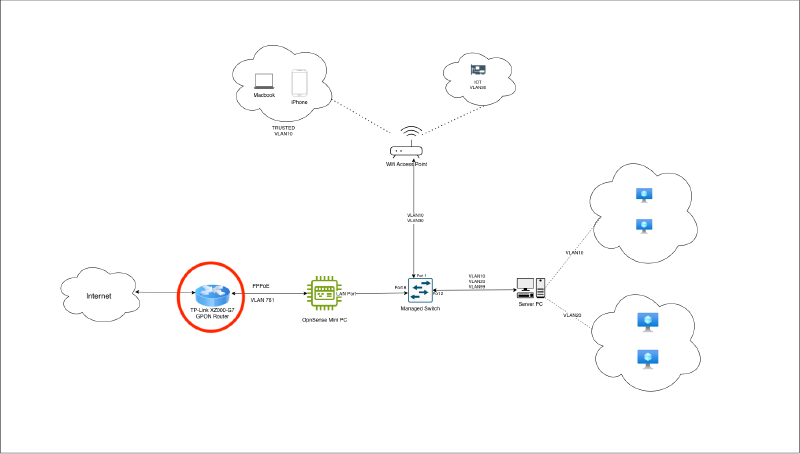
XPON Modem connects to ISP fiber cable, and converts incoming light signals to usable electrical data for routers, computers, printers, etc.
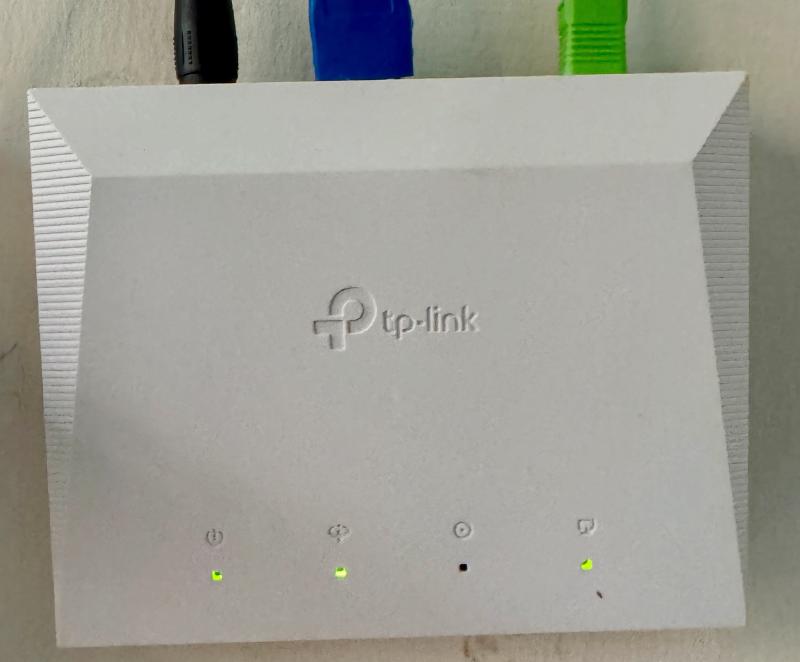
Registering modem with ISP#
Every XPON modem/router has a unique SN (Serial Number). This SN can usually be found at back of modem or in modem’s UI interface.
ISP generally registers this Serial Number with themselves. My ISP registered previous router’s Serial Number with them - meaning it recognises and expects me to connect to them via previous router. Considering this, I have two options-
- Ask ISP to register SN of this new XPON modem
- Override SN in modem interface with the one registered with ISP.
I went with Option #2 - override SN in modem interface.
To do this, open XPON interface. Then:
- Go to
Advanced Tab Network -> XPON Settings- Enter SN in
GPON SNfield - This should be previous modem’s SN that is registered with ISP SN Type- HEX (or as per previous router’s configuration)Password Type- ASCII (default). Leave Password empty (or as per previous router’s configuration)OLT Mode- Normal (or as per previous router’s configuration)
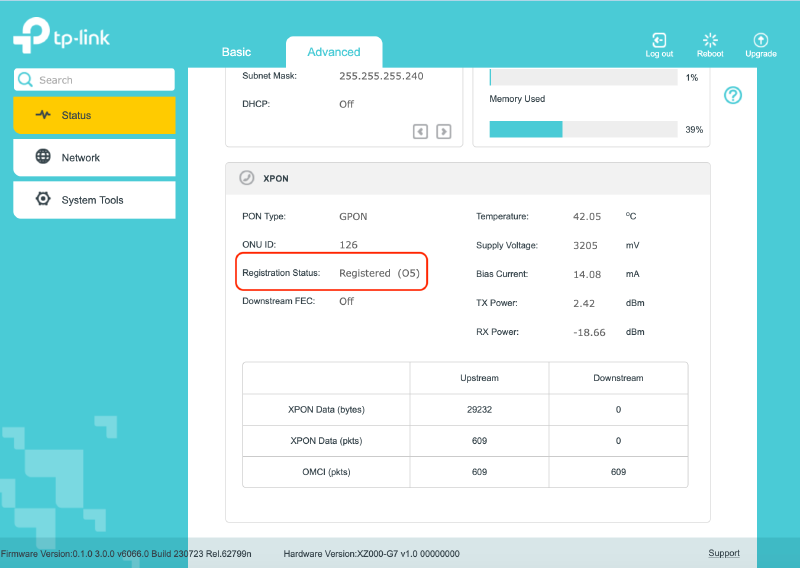
Once this is done, XPON registration status should show Registered.
It is important for XPON router to register with ISP. Without this, internet won’t work.
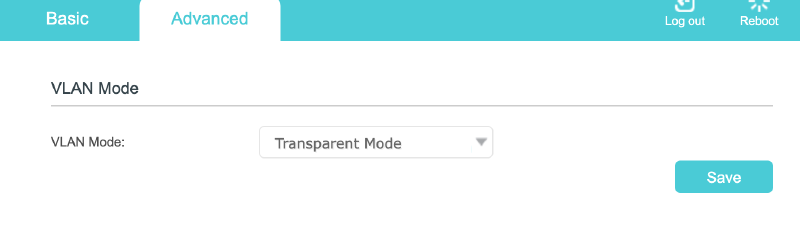
Lastly, set VLAN Mode to Transparent (Advanced Tab -> Network -> VLAN Settings). I’ll configure VLAN in OpnSense
Wired connections#
- ISP cable connects to modem’s PON port
- RJ-45 output port connects to OpnSense router’s WAN port